
Essentials / GTA VI
How to preload GTA 6 on PS5 and Xbox Series X|S
How to preload GTA 6 on PS5 and Xbox Series X|S, how much storage to clear, how to check the download, and when the game unlocks.
Before you download
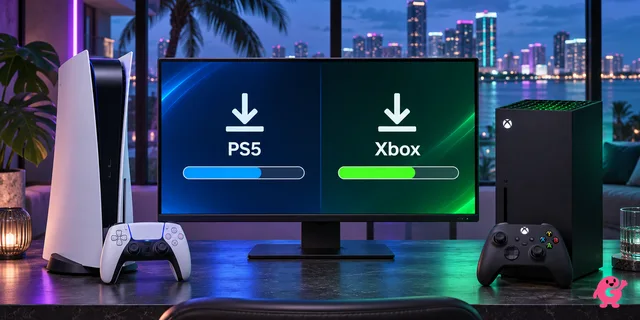
GTA 6 preload is open for digital preorders on PS5 and Xbox Series X|S. Use the account you ordered with, then follow your console’s steps below to start the download or check its progress.
Allow up to 212 GB of free space, depending on your device, according to Rockstar’s GTA VI preload FAQ. Use the size reported by your console when preparing the install drive: 212 GB is not an exact download size or an identical requirement for both platforms.
- Check free space on the drive you’ll install to. On PS5, open Settings → Storage, as shown in Sony’s storage guide. Move or uninstall a game you can redownload if you need more room.
- Sign in with the account you used to preorder.
- Install any pending console system update before you leave the download running. A completed preload does not unlock the game early.
Preload on PS5
- From Games home, open Game Library → GTA VI → preorder timer. Make sure the checkbox for the base game is selected. Sony’s preorder auto-download guide explains this per-game setting.
- Leave the PS5 on, or open Settings → System → Power Saving → Features Available in Rest Mode and enable Stay Connected to the Internet before entering Rest Mode. See Sony’s Rest Mode connectivity instructions. The separate Automatic Updates menu controls game/app updates; check the preorder timer for the base-game download.
- Press the PS button and open Downloads/Uploads to check progress. Let the GTA VI base-game download finish before launch; download completion and access to the game are separate.
Preload on Xbox Series X|S
- Open the GTA VI store page while signed in with the preorder account. If the base game hasn’t started downloading, choose Install when the option is available.
- Press the Xbox button, then go to Profile & system → Settings → System → Updates. Turn on Keep my games & apps up to date. See Xbox Support’s update instructions. Rockstar’s preload FAQ says this setting is required for automatic preload on Xbox Series X|S.
- Leave the console on or choose Sleep under Settings → General → Power options. See Xbox Wire’s power-options guide.
- Open My games & apps → Manage → Queue. Wait for the GTA VI base game to finish, then check that it appears in your installed games. Installation does not grant access before the regional unlock.
When you can start playing
The digital PS5 and Xbox Series X|S editions unlock at midnight local time at the start of Thursday, November 19, 2026. If you preordered digitally, you can download the game now and check that it’s ready before release night.
Where you can play
You can install GTA VI on PS5, Xbox Series X, and Xbox Series S at launch. Take-Two’s November release schedule lists those consoles and gives no date for a native PC edition.
On Xbox One and Xbox Series X|S, Xbox Cloud Gaming opens at 1 a.m. Eastern on November 19. Check cloud availability in your market before buying the game for streaming. Xbox requires a separate purchase of GTA VI.
If you want to play on a PC, Rockstar lists Remote Play for the console editions. Set it up on your PS5 or Xbox Series X|S to stream from your own console to a compatible PC.
If it still won’t start at midnight
Open GTA VI from your console’s home screen after your regional unlock. If you hit a snag, check the download queue and the account before trying a reinstall.
- If an install or update is still in the queue, let it finish. If it has stalled, check your connection and free space. On PS5, try Pause and then Resume in Downloads/Uploads.
- If the game is installed but locked, double-check the unlock time on the store listing and sign in with the account that owns the game.
- If it’s still locked, try Restore Licenses on PS5 under Settings → Users and Accounts → Other. On Xbox, check your Microsoft order history to confirm that the preorder went through, then reopen the game’s store page on the console.
Sources
- Rockstar Support · GTA VI regional release times
- Take-Two · November 2026 release schedule
- Xbox Wire · GTA VI on Xbox Cloud Gaming
- Rockstar Support · Preload FAQ and storage requirements
- Rockstar Newswire · Digital and code-in-box preload availability
- PlayStation Support · Remote Play on PC and Mac
- Xbox · Remote Play setup and supported devices
- PlayStation Support · Set up automatic downloads for a preorder
- PlayStation Support · Fix download and license issues
- Microsoft Support · Find a preorder and check its status
- Xbox Support · Preorder and install help