
Essentials / GTA VI
How to use GTA 6 Photo Mode on PS5 and Xbox
Open GTA 6 Photo Studio from the pause menu. Find the PS5 and Xbox shortcuts, hide the interface, and save a clean screenshot.
Gamitu Editorial1 min readReviewed

How to open GTA 6 Photo Studio
Pause GTA 6 and select Photo Studio. From the pause menu, you can also press Square on PS5 or X on Xbox Series X|S.
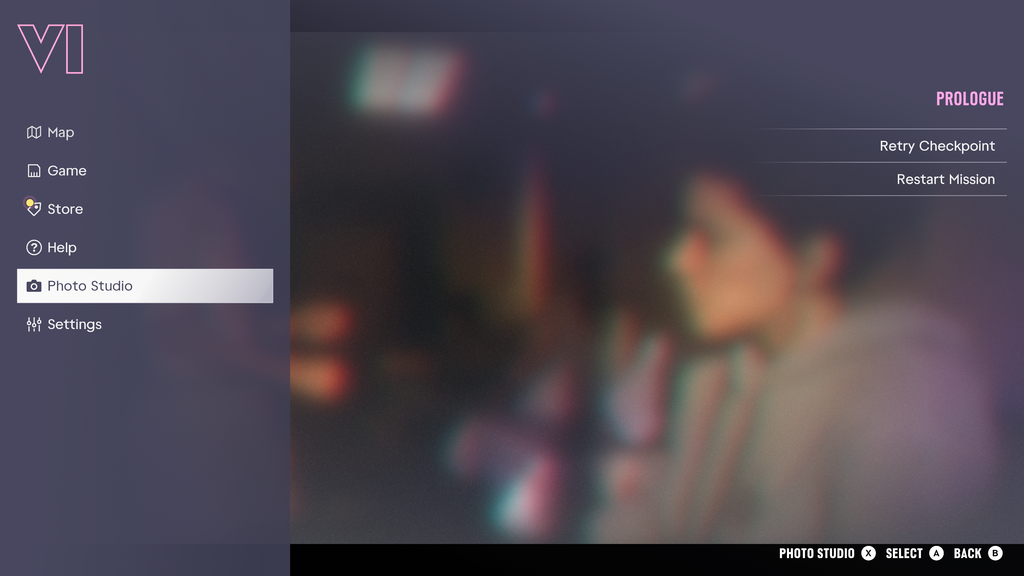
How to frame and save a clean photo
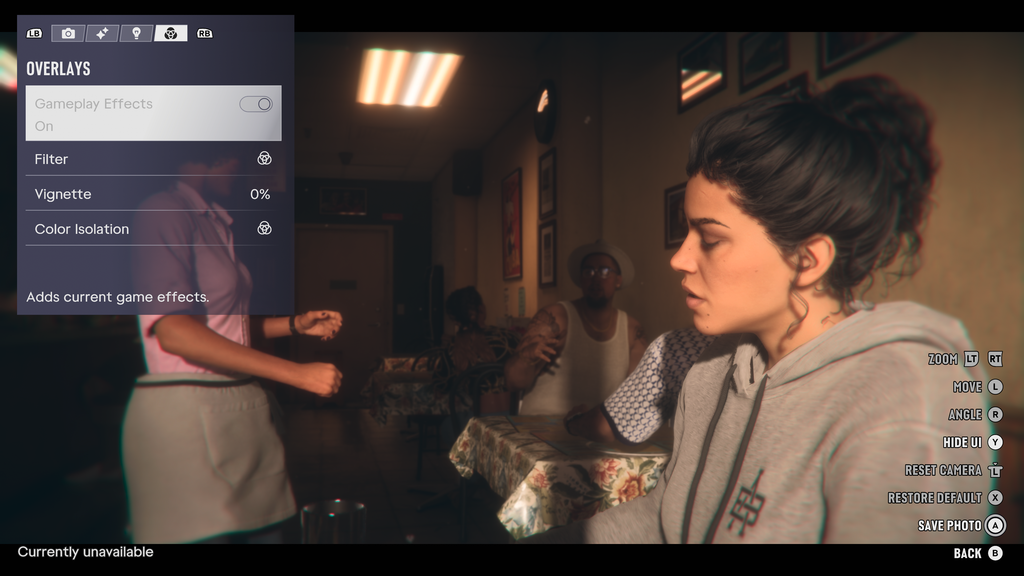
- Use the controls shown on screen to frame the shot. On Xbox, use the left stick to move the camera, the right stick to change its angle and LT or RT to zoom.
- Choose Save Photo for an in-game capture. The Xbox prompt shows A. On PS5, follow the Save Photo prompt on screen.
Take a console screenshot without the interface
Choose Hide UI in Photo Studio before taking your screenshot. On Xbox, the Hide UI prompt shows Y. On PS5, follow the prompt on screen.
On PS5, press Create and select Take Screenshot. On an Xbox Wireless Controller with the default mapping, tap Share.